This guide shows how we turned a normal video into stylized animation videos using a simple end-to-end chain.
What we built (quick recap)
- Start with a real input video (me talking/moving).
- Create a strong reference image of me (character version).
- Use motion control (puppeteering) to drive the reference image using the motion from the input video.
- Try different animation styles and pick your favorite.
Demo video
Step 1 — Nano Banana 2 (make reference images + prompts)
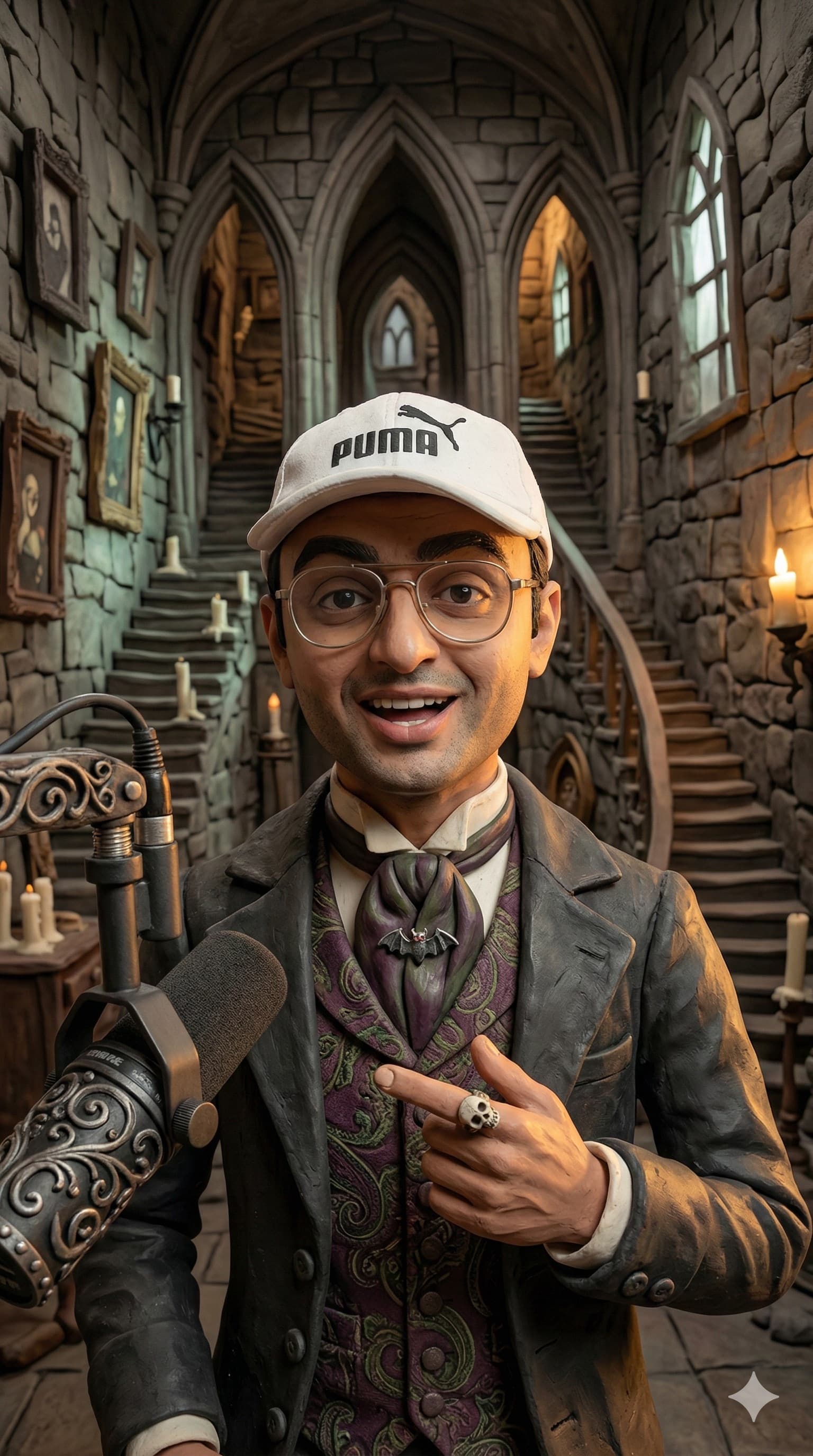
We used Nano Banana 2 to create prompts and reference images of me. Better reference images = better final video. For example if I wanted Gothic Clay Animation style:
Make me a gothic clay model with all of the elements inside a castle. You can see the castle elements, some frames, some corridors, me wearing an an oldish coat with a gothic tie and waistcoat underneath and the mic should also look more or less the same according to the gothic clay.
Make sure dynamic cinematic light lighting that conforms to the background. Ensure you preserve my facial features 8K resolution. Portrait. Show background detail. Include the microphone. Im in a room with a light source from onto, muted accent lights in the background. (9:16 aspect ratio)

Step 2 — Try different animation styles
Open a toggle, copy the prompt add-on, and test it.
Step 3 — Kling 3.0/2.6 Motion Control (puppeteering)
We used Kling 3.0 or 2.6 Motion Control. You can run it via fal.ai or via Sjinn.

How puppeteering works (simple)
- Your input video is the puppet master.
- Your reference image is the puppet (the character).
- The tool takes motion from the input video (head, hands, body).
- It drives the reference image with the same motion.
This means you can be any character you want — and still move like you.
Where you would use this
Corporate / business
- Training videos that people actually watch.
- Internal updates (more attention, less boring).
- Sales demos and explainers with a consistent character.
Content creation
- Turn 1 video into many styles for shorts.
- Faceless content (use a character instead of your real face).
The problem (why this takes time)
This can take hours because you need to cut the video, pick styles, run generations, and keep everything organized.
The solution (our Puppeteering Automation chain)