How I Created This: Step-by-Step Guide
This guide walks you through the exact process used to create AI motion control videos using character references, Nano Banana Pro, and Kling 2.6 inside SJINN.
Step 1: Download Character Reference Images
The most important rule: do not try to generate the character from scratch using AI. Prompting for a specific character like Monkey D’ Luffy or Roronoa Zoro will almost always produce inconsistent results.
Instead, download official or high-quality reference images of the characters directly from the web. Search for the character name and look for clean, front-facing or clear-angle images.
- Use Google Image Search or Pinterest for reference images
- Look for images where the character is clearly visible, ideally front-facing or 3/4 view
- Higher resolution = better results in the next step
Step 2: Generate a Front-Facing Portrait Using Nano Banana Pro
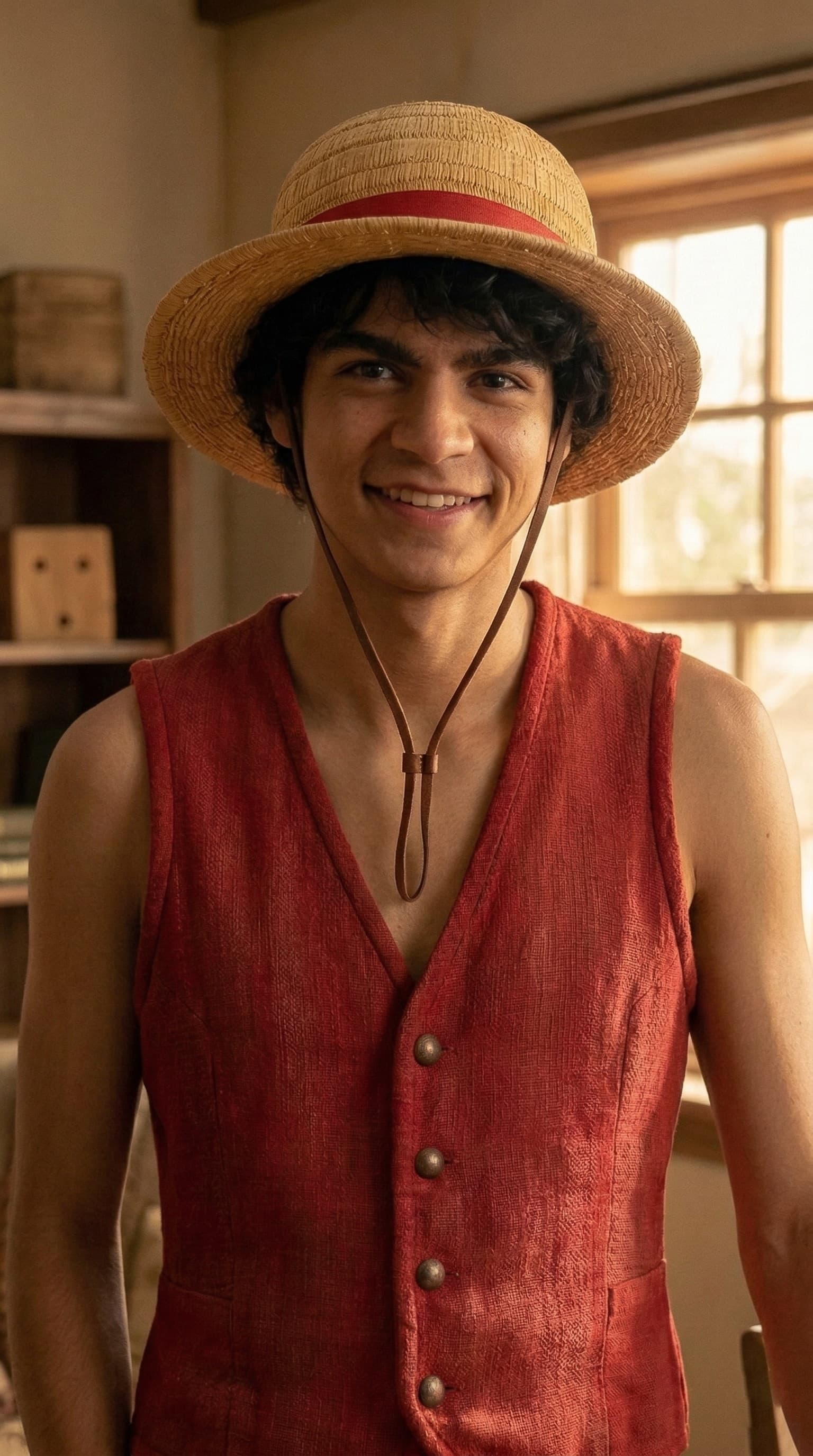
Once you have the reference image, use Google Nano Banana Pro (Gemini image generation) to transform the character into a clean, front-facing portrait ready for motion control.
Upload your reference image and use this prompt:
Change this character to a front facing 4K realistic chest-up portrait, body and face, facing the camera, smiling.
You can adjust "smiling" to neutral, serious, or any expression that fits your video. Rinse and repeat this step for each character you want to use.

Note: Nano Banana Pro may apply stricter content filters for female characters. If your result gets blocked or looks off, switch to Qwen Image Edit or Flux 2 pro image editing tools as alternatives.
Step 3: Apply Motion Control Using Kling 2.6 in Sjinn.
Now the fun part. Head over to Sjinn and search for the Kling Motion Control tool.
- Open SJINN and search for "Kling Motion Control" in the tools search
- Upload the portrait image you generated in Step 2 as your character reference
- Upload your reference video — this is a recording of yourself performing the actions, movements, and expressions you want the character to replicate
- The prompt field is optional — you can leave it blank or add a short description of the scene or mood
- Generate the output and review
The motion control tool will map your movements onto the character, making it mimic how you naturally move and talk. This is what gives the output a more authentic, human feel compared to standard AI video generation.
Step 4: Adding Voice (Pro Tip)
You have two options when it comes to voice.
Option A: Transfer Your Own Voice
When you record yourself as the reference video, Kling can transfer your voice into the output. Speak naturally in your recording and your voice will carry through to the character.
Option B: Use ElevenLabs for a Custom Voice
If you want to use a different voice entirely, run your script through ElevenLabs to generate the audio, then sync it with your motion control output in your video editor.
What You Can Build With This
This workflow is not just for fun. The real application is building AI-powered content systems for your business.
- Create a dedicated company AI avatar that posts videos consistently without you going on camera
- Build an AI influencer persona around a niche topic
- Produce high-quality marketing and ad videos at a fraction of traditional production costs
- Stay off camera entirely while maintaining an authentic content presence
Want the Full Puppeteering Automation Workflow?
Currently 91+ members. Price is $7/month and increases once we hit 100 members.