
Last updated: 24 November 2026. Written by Ritesh Kanjee, director of Augmented AI.
To extract data from a PDF to Excel automatically, first check whether the PDF holds real text or is a scan. Text PDFs with clean tables work with Excel's From PDF import or a converter. Scans, phone photos and changing layouts need AI document extraction that reads each field, checks totals and flags doubtful rows for a person.
This guide is for finance, operations and admin teams who copy figures from PDFs into spreadsheets every week. At Augmented AI we build document extraction pipelines for clients such as ICM Cargo and run our own extraction product, so the advice below comes from builds we maintain. If you would rather have it built for you, book a call.
What does extracting PDF data to Excel automatically actually mean?
It means the rows and fields you need land in fixed spreadsheet columns without anyone typing them, and the same thing happens for every new file. A one-off conversion that leaves you splitting columns by hand is a faster copy, not automation. The real test is whether next month's files go through the same way with no extra setup.
The first thing that decides your method is the type of PDF. A text-based PDF is created by software, such as a bank or accounting package, and contains characters a program can select and read. A scanned PDF is a picture of a page, so software has to recognise the characters first. Adobe suggests a quick check: open the PDF and try to select a word. If nothing highlights, the page is an image and needs text recognition first (Adobe Acrobat guide to extracting data from scanned PDFs, checked 24 November 2026).
What are the ways to get data from a PDF into Excel?
There are five common ways, and they trade setup effort against how well they cope with messy files. Most teams start at the top of the table and move down only when volume or file quality forces them to.
| Method | Works best on | How automatic it is | Watch out for |
|---|---|---|---|
| Copy and paste | One short table in a text PDF | Not at all | Columns collapse into one, and typing errors creep in |
| Excel Get Data, From PDF | Text PDFs with clear tables | Repeatable once the query is set up | No help on scans, and rows that wrap need clean-up |
| PDF converter with OCR | Single files, including scans | One file at a time | Layout can shift, so totals need checking |
| AI document extraction | Mixed layouts, scans, photos, named fields | Runs on every file that arrives | Needs confidence checks and a review step |
| Custom pipeline | Files inside a bigger process or system | End to end, from inbox to destination | Needs an owner and a support plan |
If the PDFs are bank statements, our bank statement PDF to Excel guide covers the differences between South African bank layouts. If they are supplier invoices, our invoice processing software guide explains when AI beats OCR templates.
How do you import a PDF into Excel with Power Query?
Excel can read tables straight from a text-based PDF through Power Query, with no extra software. Microsoft documents the steps on its Import data from data sources (Power Query) support page:
- In Excel, select Data, then Get Data, then From File, then From PDF.
- Choose the PDF and select Open. The Navigator window lists the tables and pages it found.
- Select the tables you need, then choose Load to put them in a sheet, or Transform Data to clean them first in the Power Query Editor.
- Next month, replace the file and select Refresh. The same clean-up steps run again.
Microsoft notes that the PDF connector needs .NET Framework 4.5 or later, so check your Excel version before you plan around it. Its PDF connector documentation also says rows that span several lines are not always identified properly and may need clean-up, and that the Folder connector can combine many PDFs at once. That makes Power Query a good free option for one consistent report format, such as a monthly statement from the same source.
When is a converter no longer enough?
A converter stops being enough when the files vary, when you need named fields rather than whole tables, or when someone still checks every row afterwards. At that point the hours go into fixing output, not into the conversion itself.
These are the signs we look for when a team asks us about PDF extraction:
- Files arrive as scans or phone photos, so text recognition errors appear in amounts and dates.
- Each sender uses a different layout, so one saved query or template does not fit them all.
- You need specific fields, such as an invoice number, a reference or a total, not a copy of the whole page.
- Tables run over several pages, and descriptions wrap onto a second line.
- Someone re-checks every converted file against the PDF because nobody trusts the output.
- The data must end up in an accounting package, CRM or other system, not only in a spreadsheet.
Accuracy matters more than speed here. Gartner research from 2020 put the average cost of poor data quality at $12.9 million a year per organisation (Gartner data quality overview, checked 24 November 2026). Those are large-company figures, but the lesson holds for a small team: a wrong figure that looks right costs more than a slow one.
How does automated AI extraction from PDF to Excel work?
AI extraction reads each PDF the way a person would, finds the fields by meaning rather than position, checks them against simple rules, and only writes clean rows to Excel. Anything doubtful goes to a person with the original page next to it. A typical pipeline has six steps:
- Collect: pick up PDFs from an email inbox, a shared folder or an upload page.
- Sort: work out what each file is, such as a statement, an invoice or a form, so the right rules apply.
- Extract: read the fields and table rows into fixed columns, with text recognition for scans and photos.
- Check: confirm totals add up, dates are valid and the closing balance matches the statement.
- Review: send flagged rows to a person, showing the extracted value next to the source page.
- Write: add the approved rows to your Excel workbook, Google Sheet or accounting system.
The check and review steps are what turn extraction into automation. Without them someone still has to compare every file, and the time saving disappears. For a plain explanation of the reading step itself, see what OCR software does and where AI goes further.
What have we learned building PDF extraction pipelines?
Our main lesson is that the review step matters as much as the reading step. A pipeline that reads most fields correctly but hides its mistakes creates more work than one that shows a person exactly what to check. These projects, all on our case studies pages, shaped how we build PDF to Excel extraction:
- ICM Cargo: freight packs arrived as mixed scans and staff rebuilt records by hand. We built AI extraction with green, amber and red validation and a review dashboard. Clean files now go through without a second rekey, and only exceptions get a human pass (freight document automation case study).
- Aussizz Group: on visa files in Australia, a single general bot missed fields a specialist would catch. Separate specialist steps per document type, plus a review layer, took processing from 8 hours to 4 hours on the same file types (visa document automation case study).
- Boards and More: the workshop spent about five hours retyping each handwritten cutting list. Document vision now reads the list and lands it in their CRM, and the retype step is gone (cutting list case study).
- InstaCutList: our own product reads photos of cutting lists and shows each extracted line next to the photo for a person to check before export. Showing the source beside the result is the same pattern we use for PDF tables (InstaCutList).
On bank statements we use the closing balance as the built-in check. If the extracted rows do not add up to the balance printed on the PDF, the file is flagged instead of being written to the sheet.
Should you use a tool or a custom build?
Use a tool when your PDFs are text-based, come from a few sources and only need to land in a spreadsheet. Consider a custom build when files vary, arrive in volume, or feed a system beyond Excel.
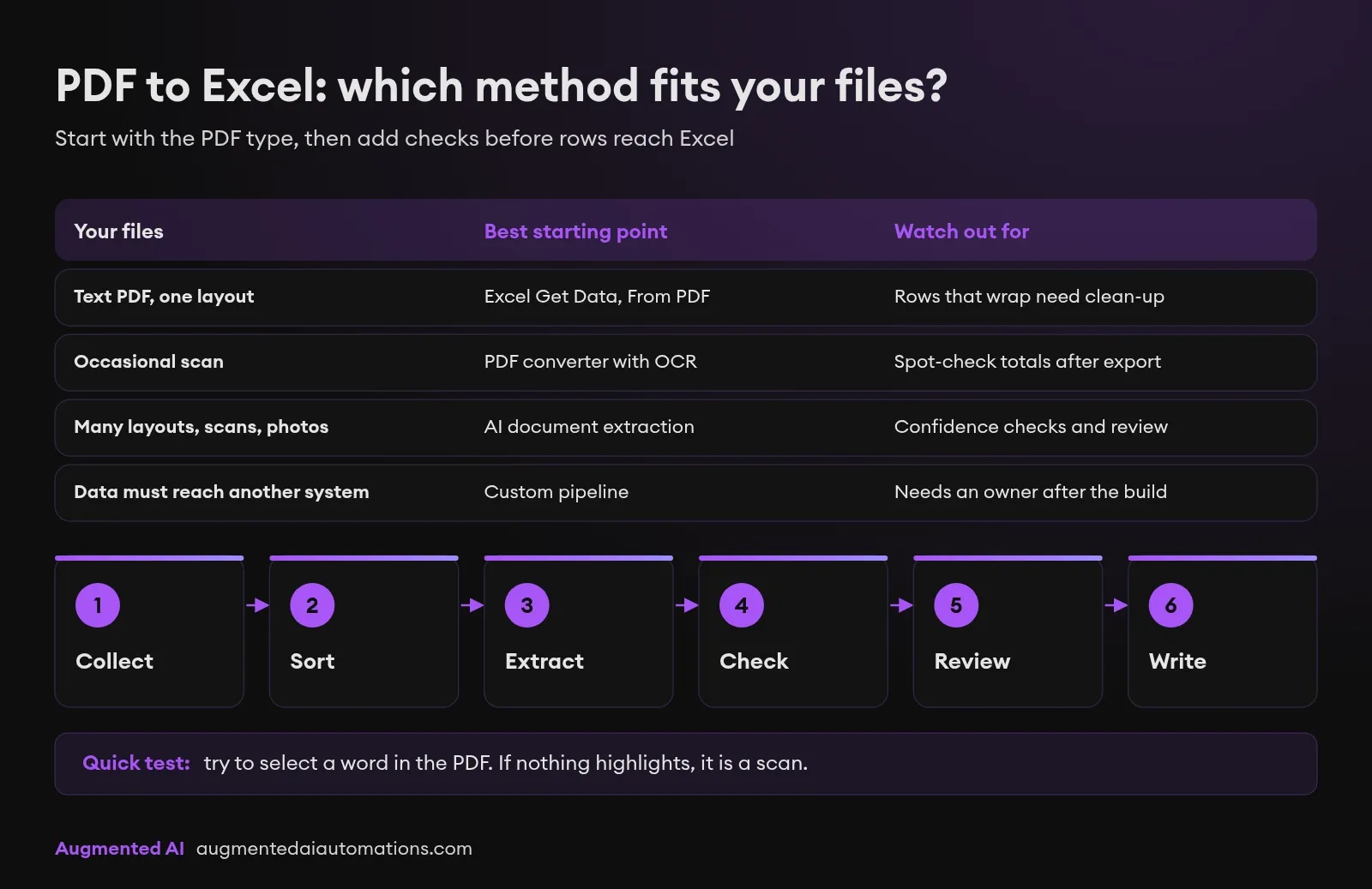
| Your situation | Best starting point |
|---|---|
| One monthly report in the same layout | Excel Get Data, From PDF, refreshed each month |
| An occasional scanned document | A PDF converter with text recognition, then spot-check totals |
| Many senders, changing layouts or phone photos | AI document extraction with a review step |
| Data that must reach an accounting package, CRM or ERP | A custom pipeline built around your process |
Before you buy or build, time how long the work takes today on 20 recent files, including the worst ones. That baseline tells you whether automation is worth it and gives you a number to measure the result against. Our data entry automation guide and Excel automation tools guide cover the wider spreadsheet work around this step.
What to do next
Pick one PDF process your team repeats every week and run the select-a-word test on a few files. If they are text PDFs from one source, try Excel's From PDF import first. If they are scans, mixed layouts or need to reach another system, our document processing automation service starts by measuring that one process and telling you whether it is worth automating.
To talk through your files, book a call with Augmented AI.